Getting Started with Java SE 7
• What Java is
• The object-oriented development process
• Types of Java applications
• The creation of a simple program
• The definition of classes and interfaces
• Java Application Development
• Java environment
• Java documentation techniques
• The use of annotations in Java
• The core Java packages
Understanding Java as a technology
- Sun Microsystems developed the original specifications for the language in the
mid 1990s.
- Java is a full-fledged object-oriented programming language.
- Java supports many features that, at its time of conception, were not found directly
in other languages such as:
---- threading,
---- networking,
---- security, and
---- Graphical User Interface (GUI) development.
- Java uses an independent bytecode that is architecture neutral.
----Java Virtual Machine (JVM).
Object-oriented software development
- This approach models an application around a series of real world objects, such as an employee or a ship.
----
Friday, May 3, 2013

Wednesday, April 3, 2013
Microsoft Word Web App
This tutorial guides the reader to use Microsoft Word Web App. However, the steps are also applicable to the Desktop version of Microsoft Word.
A) CREATING NEW DOCUMENT
1) If you are using Desktop version of Microsoft Word, e.g Microsoft Word 2010, you may skip this step.
Browse the url http://skydrive.live.comYou need to log in to your outlook.com or hotmail.com in order to access this page.
Click Create/Word document.

2) By default, the system will create a document titled Document1.docx.

3) You will see the standard window interface.
The top bar shows the Application Name and Document Name.
The Ribbon shows the Tabs and Command Buttons.
The Document window shows a blank document that looks like a piece of white paper.
At the bottom left of the window, there is the word counter and the language label.

4) Click somewhere on the document window (the white area) you you will get a blinking cursor.

B) COPY-PASTE TEXTS
5) Copy the following texts and paste them to your Word document.
5.1) Highlight the text below and [right-click]+[copy] or press [ctrl]+[c].
Introduction To Word Processing
History of Word Processing
Word processing is the creation of documents using a word processor. It can also refer to advanced shorthand techniques, sometimes used in specialized contexts with a specially modified typewriter. The term was coined at IBM's Böblingen, West Germany (at that time) Laboratory in the 1960s.
Word Processing Software
Word Processing Software Microsoft Word is the most widely used word processing software. Microsoft estimates that over 500,000,000 people use the Microsoft Office suite,[1] which includes Word. Many other word processing applications exist, including WordPerfect (which dominated the market from the mid-1980s to early-1990s on computers running Microsoft's MS-DOS operating system) and open source applications OpenOffice.org Writer, LibreOffice Writer, AbiWord, KWord, and LyX. Web-based word processors, such as Office Web Apps or Google Docs, are a relatively new category.
Typical Features of Word Processing Software
Clipboard functions: Copy, Cut and Paste texts.
Changing Font properties: Font name, Font size, Growing or Shrinking Font sizes etc.
Changing Paragraph properties: Bulleted list, Numbered list, indentation, Alingment, Line Spacing etc. Changing Text Styles: Normal Text, Title, Subtitle, Headings etc.
Spell Checking
5.2) Switch to your Word document (you can press [alt]+[tab] to switch between applications).
5.3) Go to Clipboard Section. Click Paste.

5.3.1) If you get a paste error message, use [ctrl]+[c] keys instead.

5.4) The content is pasted to the Word document.

C) SPELL CHECK
6) Notice that some texts have red error marker underlining them.
In the example below, Word doesn't recognize the text as an English word.

6.1) Locate the Spell Check button.
Click the button.

6.2) Word suggests a replacement to the marked text.
However, we are not going to change it as this is a correct German word.

6.3) Keep on clicking the Spelling button and Word will cycle through the red underlined texts till the last one. This time the text spelling is indeed wrong. Click the word Alignment in the context pop-up menu to make correction.

6.4) Word will replace the selected text with the suggestion that you have chosen.
D) LINE BREAK
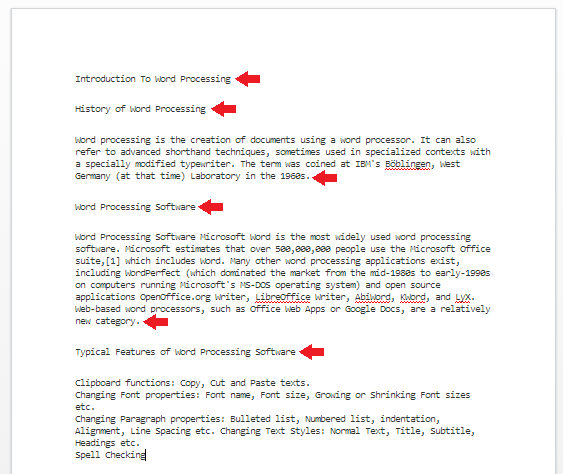
7) Line break helps to improve the passage readability.
7.1) Refer to the example below, press [Enter] key at the position marked by the red arrow.
E) FONT PROPERTIES
8) The Font section provides buttons for changing the Font properties.
8.1) Press [Ctrl]+[a] keys to select all text.
8.2) Go to Font Section. Select Arial from the drop down list.

8.3) The whole texts changed to Arial.

F) BOLD TEXTS
9) Bold texts distinguish the key points from other body texts.
9.1) Check that your paragraph is as follows. If the text are not in the right place, adjust their position accordingly.

9.2) Using your mouse, select the phrase "Clipboard functions".
9.3) As soon as you finish selecting the phrase, a context menu pops up. Set Bold property.

9.4) Repeat the same steps for other phrases as follows:

G) BULLETS
10) Bullets help to separate each items in an unordered list. This improves passage readability.
10.1) Using your mouse, select the whole text under the heading "Typical Features of Word Processing Software.
10.2) Alternatively, you can click your mouse beside the first letter of the first line.

10.2.1) Hold [Shift] key. Press [Down] key until you reach the last line. The whole texts are selected as below.

10.3) Go to Paragraph Section. Click the bullet drop-down list and choose Square bullet.

10.4) The result would be as follows.

H) INDENTATION
11) Indentation push texts away from left margin to show their hierarchy in the passage.
11.1) Select the paragraph under the heading "History of Word Processing".
11.2) Go to Paragraph Section. Click Increase Indent.

11.3) Repeat the step until the whole document looks like below.

I) STYLING
12) Document Styling helps to organize the structure of a document. This improves content navigation and easy conversion to other type of document such as Web Document.
12.1) Select the first line "".
12.2) Click the Drop Down list to get More Styles.

12.3) Click Title style.

12.4) Click the heading "History of Word Processing", "Word Processing Software" and "Typical Features of Word Processing Software". Apply Heading 1 style.
12.5) Finally, the document will look like below.

13) The final texts looks more professional than the original texts. The look of the document is important as it improves readability aspects as well as visually appealing to the reader..
Wednesday, March 27, 2013
Android Software Development

1) Android software development is the process by which new applications are created for the Android operating system.
2) Applications are usually developed in the Java programming language using the Android Software Development Kit, but other development tools are available.
3) Methods
3a) Android SDK + Eclipse + Java (http://developer.android.com/training/index.html)

3b) Android SDK + Basic4Android (http://www.basic4ppc.com/)

3c) Appcelerator + JavaScript (http://www.appcelerator.com/)

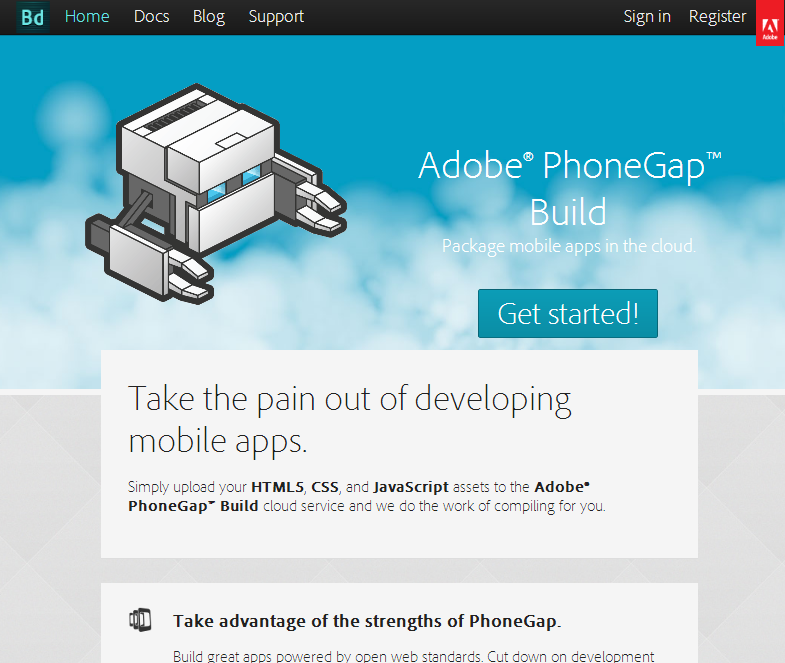
3d) PhoneGap (http://phonegap.com/) and https://build.phonegap.com/ .
Sunday, March 10, 2013
iOS Application Development Using Xcode 4.6

1) iOS (previously iPhone OS) is a mobile operating system developed and distributed by Apple Inc.
2) Originally released in 2007 for the iPhone and iPod Touch, it has been extended to support other Apple devices such as the iPad and Apple TV.
3) Unlike Microsoft's Windows Phone (Windows CE) and Google's Android, Apple does not license iOS for installation on non-Apple hardware.
4) As of September 12, 2012, Apple's App Store contained more than 700,000 iOS applications, which have collectively been downloaded more than 30 billion times.

5) The user interface of iOS is based on the concept of direct manipulation, using multi-touch gestures.
6) Interface control elements consist of sliders, switches, and buttons.
7) Interaction with the OS includes gestures such as swipe, tap, pinch, and reverse pinch, all of which have specific definitions within the context of the iOS operating system and its multi-touch interface.
8) Internal accelerometers are used by some applications to respond to shaking the device (one common result is the undo command) or rotating it in three dimensions (one common result is switching from portrait to landscape mode).

DEVELOPMENT
9) On October 17, 2007, Steve Jobs announced that a software development kit (SDK) would be made available to third-party developers in February 2008. The SDK was released on March 6, 2008, and allows developers to make applications for the iPhone and iPod touch, as well as test them in an "iPhone simulator". However, loading an application onto the devices is only possible after paying an iPhone Developer Program fee.
10) Users can create and develop iOS Applications using a free copy of Xcode, however they cannot test their applications on a physical iOS device, post them to the App store or make profit from their applications without first paying the $99.00 iPhone Developer or Mac Developer Program fee.
11) Since the release of Xcode 3.1, Xcode is the development environment for the iOS SDK. iPhone applications, like iOS and OS X, are written in Objective-C.


STARTING XCODE 4.6
1) If you haven't got Xcode software in your Mac OSX, you can download from https://developer.apple.com/xcode/

2) Once it is installed, Xcode can be found in the Applications Directory. You can place Xcode at the dock for faster access.

3) If you run Xcode for the first time, it would look like below.

iOS Development: An Overview
1) iOS
2) Xcode + Objective-C + Nib + Storyboard
3) Developer License
4) Xcode IDE
5) Standard Steps and Wizards.
6) Project Categories and Types.7) Standard Components.
Continue to create first application
Friday, March 1, 2013
Data and Operators Concept
This tutorial uses JavaScript Language to demonstrate the underlying concepts.
1) Computer basically performs three basic tasks:
1a) Input values from user.
1b) Process input values.
1c) Output results back to user.
2) A simple output statement.
2a) The following is a simple output statement.
2b) See the output here http://ideone.com/JwDA2B.
2c) This program output values that have been set before the run time. It is also called "hardcoded", i.e the value is fixed throughout the run time.
3) A simple processing statement
3a) The codes in (2) have been modified to include some data operations.
3b) See the output here http://ideone.com/Et6f4O .
3c) The codes show the sample of data operations involving String data type and Number data type.
3d) The initial values of the data are still hardcoded.
4) A simple input-process-output statements
4a) The codes in (3) have been modified to include variable declaration, initialization and input statements.
4b) See the output here http://ideone.com/l3SVWQ .
4c) The codes shows the data input and data operation (string and number). Data that holds input value is commonly called VARIABLE. In this example, username is STRING VARIABLE and firstnum and secondnum are NUMBER VARIABLE.
4d) Notice that the "+" data operator works according to the context of data types ( for STRING VARIABLE, '+' means concatenate and for NUMBER VARIABLE, '+' means mathematical add operation.)
4e) Notice that the use of variables makes this program dynamic, i.e it can take input values during run time. In this examples, the variables are said to be "softcoded".
1) Computer basically performs three basic tasks:
1a) Input values from user.
1b) Process input values.
1c) Output results back to user.
2) A simple output statement.
2a) The following is a simple output statement.
2b) See the output here http://ideone.com/JwDA2B.
2c) This program output values that have been set before the run time. It is also called "hardcoded", i.e the value is fixed throughout the run time.
3) A simple processing statement
3a) The codes in (2) have been modified to include some data operations.
3b) See the output here http://ideone.com/Et6f4O .
3c) The codes show the sample of data operations involving String data type and Number data type.
3d) The initial values of the data are still hardcoded.
4) A simple input-process-output statements
4a) The codes in (3) have been modified to include variable declaration, initialization and input statements.
4b) See the output here http://ideone.com/l3SVWQ .
4c) The codes shows the data input and data operation (string and number). Data that holds input value is commonly called VARIABLE. In this example, username is STRING VARIABLE and firstnum and secondnum are NUMBER VARIABLE.
4d) Notice that the "+" data operator works according to the context of data types ( for STRING VARIABLE, '+' means concatenate and for NUMBER VARIABLE, '+' means mathematical add operation.)
4e) Notice that the use of variables makes this program dynamic, i.e it can take input values during run time. In this examples, the variables are said to be "softcoded".
Program Control Structure Concept
This tutorial uses JavaScript Language to demonstrate the underlying concepts. You may also try the JavaScript interactive console at http://www.squarefree.com/shell/ .
1) To solve programming problems, programmers normally write a list of statements.
2) By default, computer execute the statements sequentially from top to bottom of the list. However, some solutions are not straightforward and sequential steps could not solve them. Therefore, a Program Control Structure Concept is introduced.
2) By default, computer execute the statements sequentially from top to bottom of the list. However, some solutions are not straightforward and sequential steps could not solve them. Therefore, a Program Control Structure Concept is introduced.
2) Program Control Structure defines how the execution control move from one statement to another.
3) In general, there are three types of Control Structure:
3a) Sequential
3b) Selection
3c) Loop
By using the combination of these three Control Structures, programmers would now be able to write most solutions.
4) Sequential Control Structure
4a) The following shows an example of program statements:
4b) See the output at http://ideone.com/u0TQIG.5) Selection Control Structure
5a) The following shows an example of program statements:
5b) See the output at http://ideone.com/ES55HX.
6) Loop Control Structure.
6a) The following shows an example of program statements:
6b) See the output at http://ideone.com/LCNPbQ .
Computer Programming Concept
1) Computer Programming refers to activities of writing computer instructions.
2) These instructions may be used to control system hardware and software or to carry out data processing tasks according to the organization needs.
3) Computer Instructions may be composed of human language words, mostly English language, i.e called a high-level language or may be written using short codes representing computer system memory address and data operations, i.e called a low-level language.
3a) Low-level Language
3b) High-level Language
4) A person who writes a computer program is called Programmer.
5) Programmer writes instructions using set of predefined keywords called Programming Language. At present, there are more than 100 programming languages (http://en.wikipedia.org/wiki/List_of_programming_languages). In practice, mastering one language is sufficient for a programmer to write an effective computer program.
6) In general, computer programming activities include the following stages:
1. problem analysis
2. design of the program
3. algorithm and flow chart
4. coding of the program
5. debugging and testing
6. documentation
7. maintenance of program
These stages are often referred as Program Development Life Cycle (read more)

Subscribe to:
Posts (Atom)